 T3 Smart App · Documentation
Connect a T3 Smart camera
Pair your camera over 2.4 GHz Wi-Fi.
How do I connect a T3 Smart camera?
Open the app, tap add device, and follow the prompts to pair over a 2.4 GHz Wi-Fi network. Make sure your phone is on the same network.
How to connect the camera to the app
Before you start
Make sure Wi-Fi is available and your phone is connected to a 2.4 GHz Wi-Fi network. Connect the camera to power and wait until you hear the camera prompt — once you hear it, the system has started up and is ready to connect.
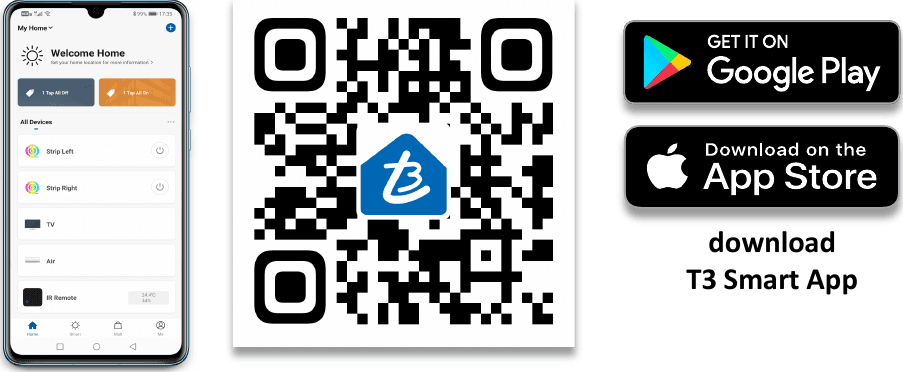
Download the T3 Smart App
Use your smartphone to scan the QR code, or search T3 Smart in Google Play Store or the App Store to download and install it. The application supports Android and iOS.
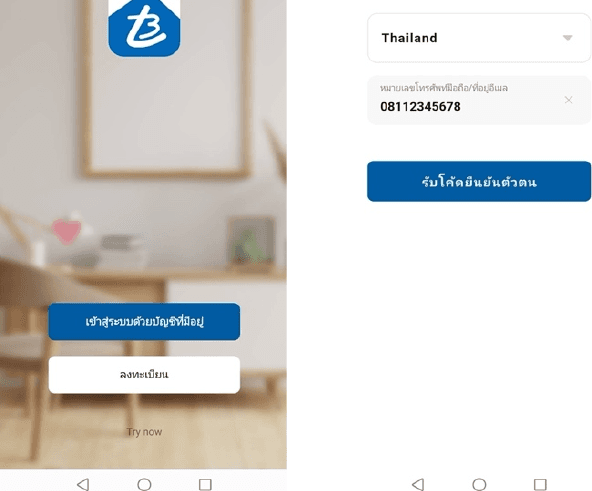
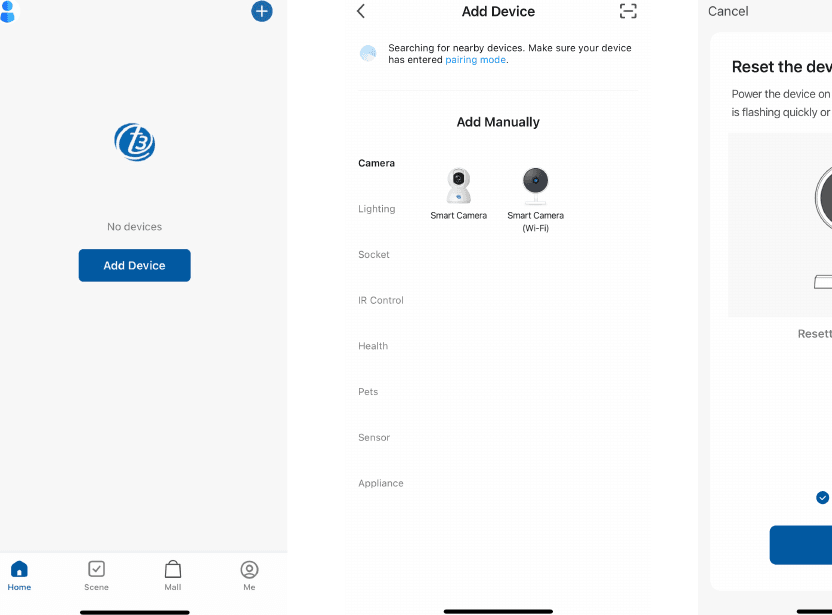
Add the camera
Open the T3 Smart app, tap + or Add Device on the main screen, then tap Camera and choose Smart Camera to add the camera. Read the instructions, then tick the box and tap Next step.
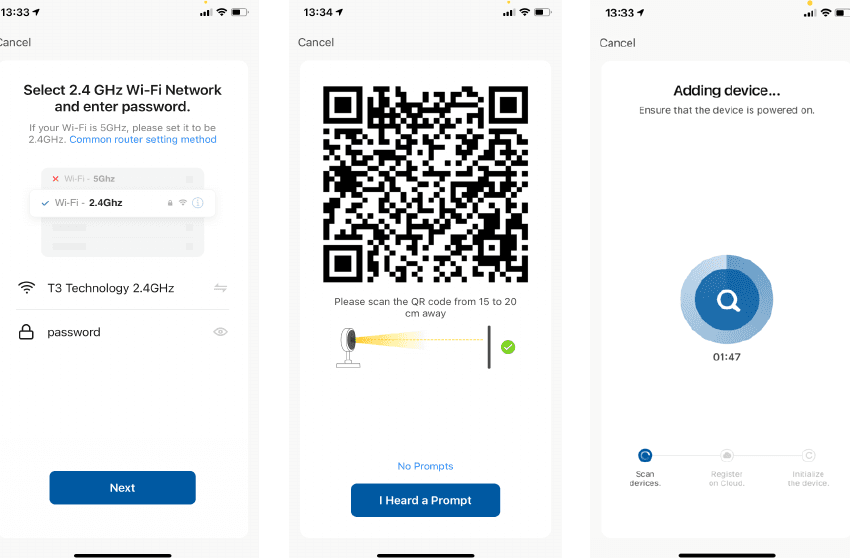
Connect to Wi-Fi and scan the QR code
Choose a 2.4 GHz Wi-Fi network only, enter the password and tap next. A QR code appears on the phone screen. Show the QR code in front of the camera (keep the camera about 20–30 cm away from the phone lens). After you hear the scanning sound, tap I heard a prompt. The application will add the camera.